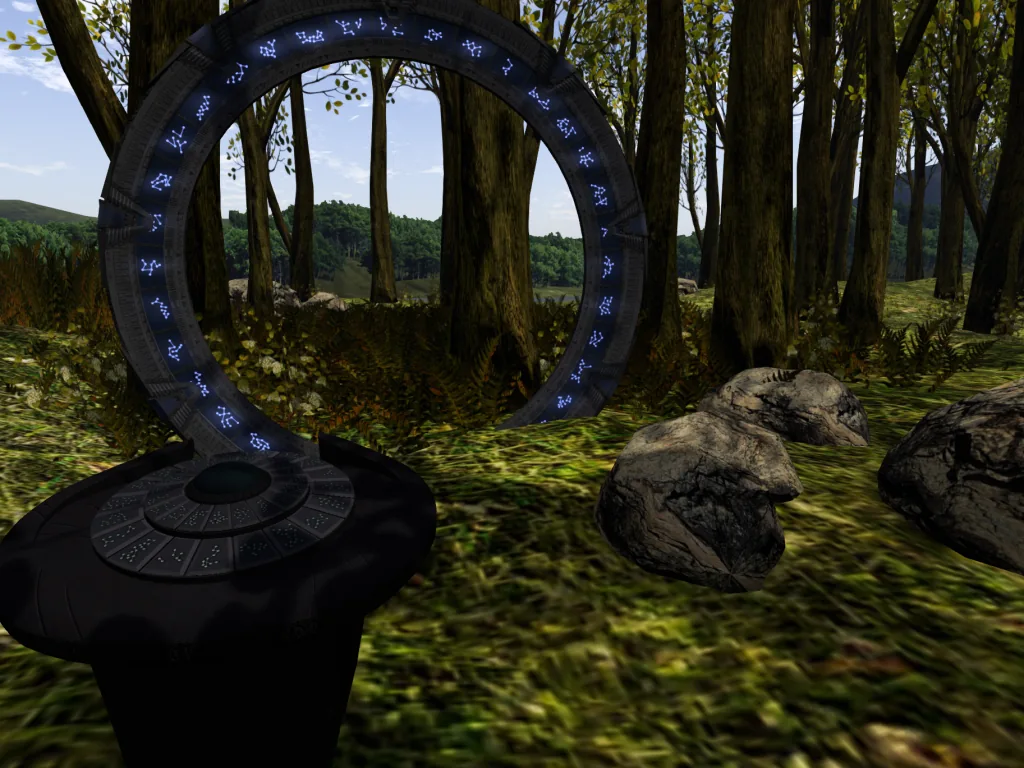
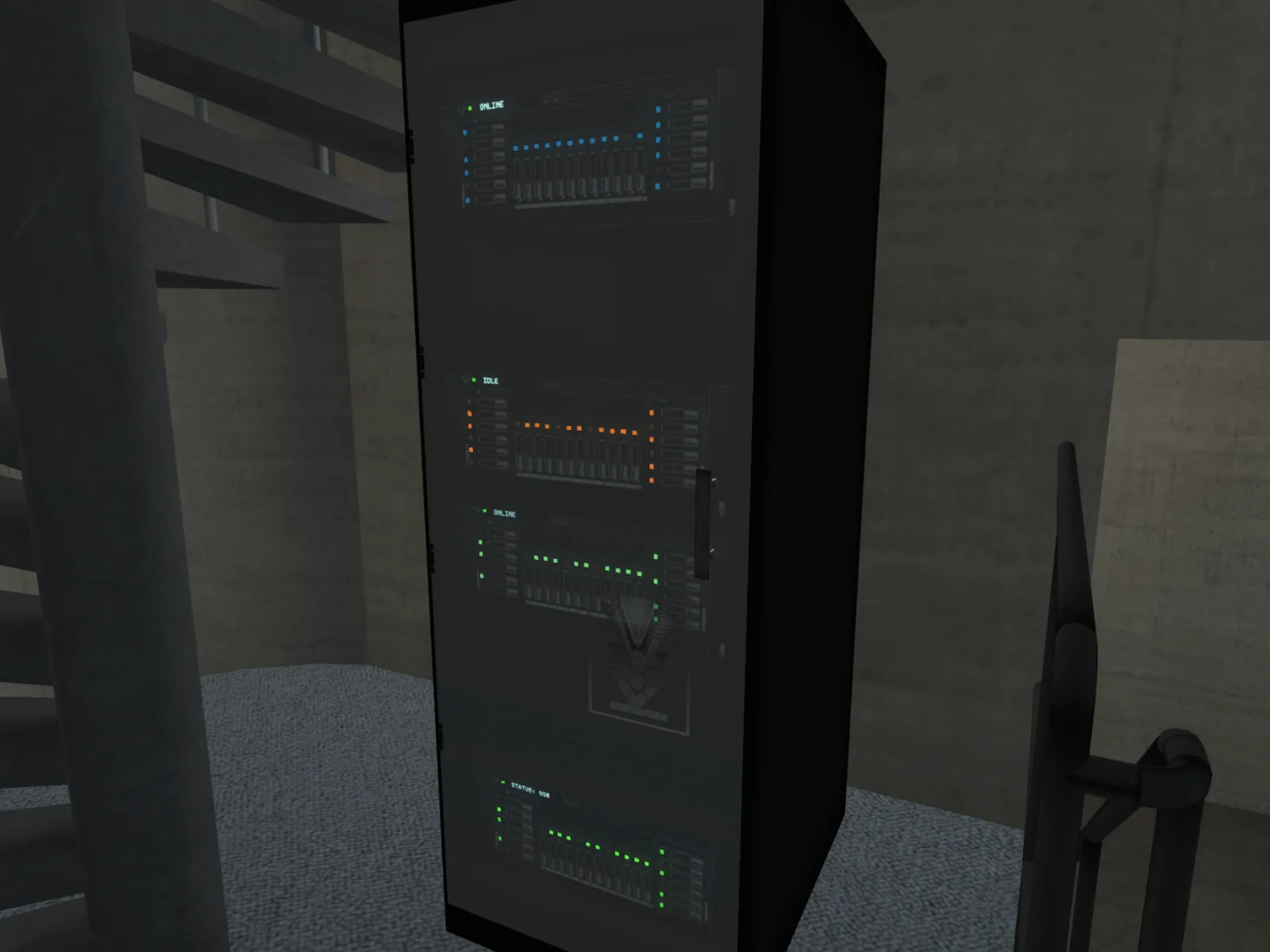
 +Stargate AIO Server — hero establishing shot
What you're getting.
The Stargate ALL IN ONE Server is the definitive automation and security hub for any active Stargate owner. Rather than juggling multiple scripts or accessories, this single server consolidates every gate management function into one interactive device — from IDC identification and advanced automation profiles down to voiceline playback and settings backup.
As of version 3.5, the AIO Server gained a web portal that lets you manage all settings directly from your browser without navigating in-world menus. Combined with the new Admins system, gate management can now be delegated to trusted team members — essential for larger roleplay communities and shared Stargate builds.
Compatible with both ASN and Novum Stargate networks, and supporting all three gate types — Milky Way (SG1), Pegasus (SGA), and Universe (SGU) — the AIO Server adapts to whatever gate you run. Note that Novum compatibility is partial in the current version; see the compatibility section for details.
Everything in the box.
IDC system with automation profiles
When an incoming wormhole opens, the server automatically raises your Iris or shield and waits for trusted GDOs to transmit their Iris Deactivation Code. Advanced profiles let you condition IDC activation on your online/offline status, whether you're on or off the region, or a specific time window — so your gate behaves differently while you're away.
Whitelist and blacklist for the IDC
Fine-tune which gates trigger the IDC check by maintaining per-gate or per-region whitelist and blacklist entries. You can also restrict IDC to blacklisted gates only, so trusted networks pass through freely while known problem addresses always trigger the shield.
Remote Stargate control
Trusted users equipped with a GDO can send commands to your gate from the far side of a wormhole — including force-shutdown and shield activation — giving your team operational control without needing physical access to the server.
Anti-Death system
Automatically closes the Iris or shield during the dialing sequence to block the kawoosh, and also raises the shield if the target gate has activated its own protection — keeping your team safe at both ends of the connection.
Stargate Intrusion Detection
Monitors for avatars who attempt to force-teleport through the gate even while the shield is raised. Any intruder is dealt with instantly via a linked Death Caller object, providing a hard security layer that the IDC alone cannot cover.
EMP wormhole extender
Send electromagnetic pulses to extend an active wormhole well beyond the standard 90-second limit, up to a maximum of 38 minutes. A lighter Wormhole Extender mode is also available for shorter, controlled connection durations without engaging the full EMP.
Voicelines (Walter, GladOS, Thor…)
Bring the gate room to life with iconic voice commentary for every chevron engagement and incoming event. Choose from built-in packs — WalterOriginal, WalterAI, GladOS, Thor, Hammond, O'Neil — or upload a fully custom voiceline notecard with your own sound UUIDs.
Incoming message
Automatically broadcast a configurable welcome message over the Stargate radio whenever an incoming wormhole opens, keeping arriving travellers informed or in character.
Sync with Vk Labs DHDs
The server's IDC user list can be synchronised with nearby Vk Labs DHDs over a shared channel, so you only need to maintain one list for both devices.
Settings backup and restore
Rez the included Backup Disk to download a full snapshot of your server settings. Store it in your inventory and use it later to transfer your configuration to a replacement or updated server without starting from scratch.
Web portal management
Since version 3.5, all server settings are accessible via an online portal, allowing you to adjust IDC profiles, voicelines, user lists, and more directly from your browser — and to manage multiple servers from a single interface.
ZPM HUB power integration
Optionally connect the server to a Vk Labs ZPM HUB so it draws power while active. Enable the dependance mode and the server will automatically shut down if the ZPM HUB runs out of power, keeping your build narratively consistent.
Low script count and land impact
Designed with performance in mind, the AIO Server keeps its script footprint and land impact minimal so it fits comfortably alongside your other build components without straining region resources.
Technical details.
More from the set.
Stargate AIO Server — hero establishing shot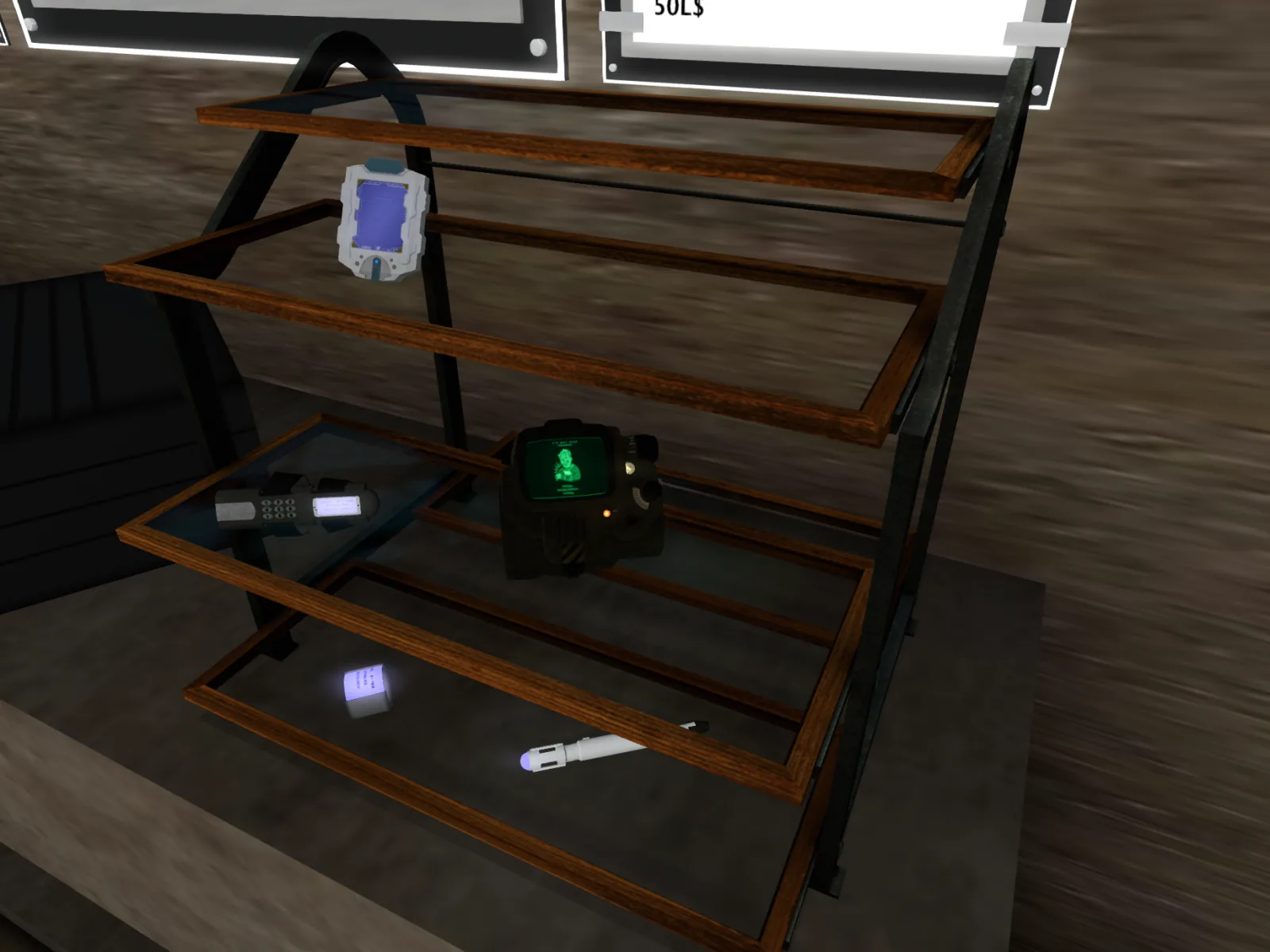 AIO Server mounted in server rack
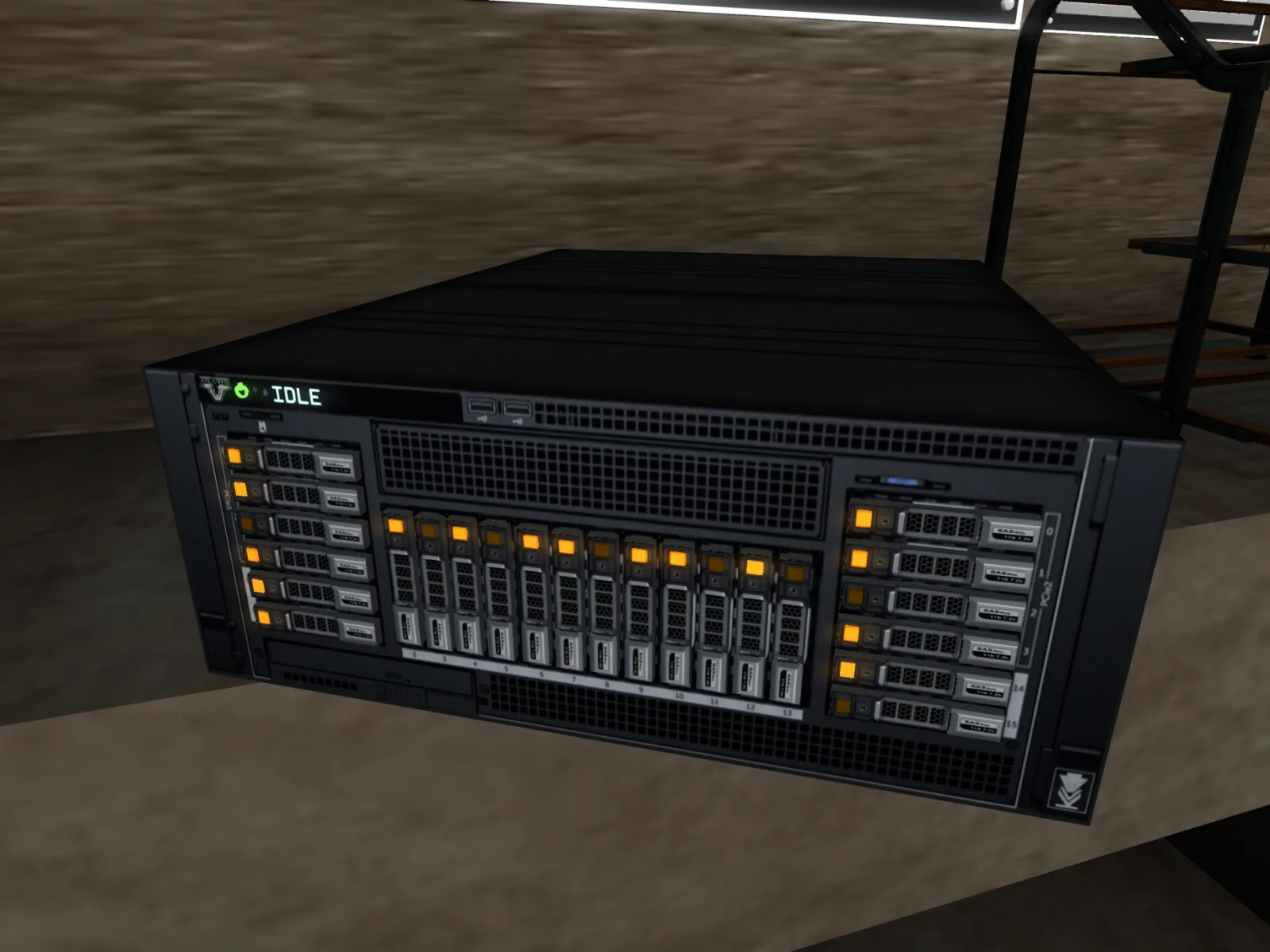 AIO Server — front panel detail
Setup & operation.
// Read the setup once, keep the options open as reference while you configure.
Choose your Stargate network
Upon rezzing the server, it will ask which Stargate network it will be used with. Choose between ASN or Novum.
Select gate type
After choosing the network, select the gate type: Milky Way (SG1), Pegasus (SGA), or Universe (SGU).
Access the main menu
Once initialisation is complete, click the server to open the main menu and activate whichever systems you need.
Install custom voicelines
Create a notecard named "voice2_<your voice name>" in your inventory. Fill it using the provided template, replacing each placeholder with the UUID of a sound you have uploaded to Second Life (right-click the sound → Copy UUID). Rez the Notecard Upload Disk from the box, hold CTRL, and drag-and-drop the notecard onto the Disk. Click the Disk to transfer the notecard to the nearby server, then update settings and assign your custom voiceline.
Back up and restore settings
Rez the 'Backup Disk [AIO] EMPTY' included in the box near your server. Avoid placing multiple servers nearby to prevent conflicts. Click the Disk to download the current server settings. Once complete, take the modified Disk into your inventory. Use it later to restore settings on another server or a newer version.
Every release, in order.
- Settings are now manageable from a new web portal — control IDC, voicelines, and user lists directly from your browser.
- Added Admins list — owners can now grant other users full control over server settings.
- Fixed Intrusion Detection not updating user lists until the shield was raised during an incoming.
- Added new voicelines (Hammond v2, O'Neil v2) and updated the voiceline template.
- Moved voicelines menu out of core.lsl for improved context and performance.
- IDC automation no longer toggles off the IDC main switch to avoid confusion.
- Fixed Blacklist Outgoing blocking.
- Fixed Remote Control not working for non-owner users.
- Admins list now included in IDC and Remote Control authorization checks.
- Admins list now uses the same format as the IDC user list (user.resident).
- Changed voiceline detection to also pick up changes made via the web portal.
- Added auto-stop option to EMP — the EMP can now be set to turn off automatically after use.
- Added Wormhole Extender option, similar to EMP but for a user-chosen duration.
- Added small text animation on the server front panel when EMP or Extender is active.
- Minor fixes.
- When IDC is set to react only to blacklisted Stargate addresses, the gate is no longer removed from random dialing.
- Added ASN compliance for IDC — enabling IDC now removes the Stargate from the random dial listing.
- Fixed issue with ZPM power off/on connector.
- Added two new voicelines: Thor and Hammond.
- Added custom voiceline upload tool via notecard and Disk.
- Added settings backup and restore tool.
- New feature: Stargate Intrusion Detection — detects avatars teleporting through the gate while the shield is up and kills them instantly. Requires a Death Caller.
- Fixed list manager sometimes returning unexpected list content.
- Fixed list manager not working when navigating large lists.
- Fixed Add to Blacklist not working.
- Fixed Aria voiceline sounds triggering an error.
- Fixed Group Key add for IDC.
- Small improvements.
- GDOs 3.1: improved teleport security; fixed a bug that doubled teleport when using RLV.